
9.0 KiB
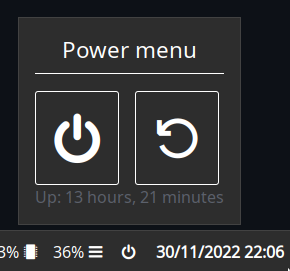
Allows you to compose custom modules consisting of multiple widgets, including popups. Labels can display dynamic content from scripts, and buttons can interact with the bar or execute commands on click.
Configuration
Type:
custom
This module can be quite fiddly to configure as you effectively have to build a tree of widgets by hand. It is well worth looking at the examples.
Widget
There are many widget types, each with their own config options. You can think of these like HTML elements and their attributes.
Every widget has the following options available; type is mandatory.
| Name | Type | Default | Description |
|---|---|---|---|
type |
box or label or button or image |
null |
Type of GTK widget to create. |
name |
string |
null |
Widget name. |
class |
string |
null |
Widget class name. |
Box
A container to place nested widgets inside.
Type:
box
| Name | Type | Default | Description |
|---|---|---|---|
orientation |
horizontal or vertical (shorthand: h or v) |
horizontal |
Whether child widgets should be horizontally or vertically added. |
widgets |
Widget[] |
[] |
List of widgets to add to this box. |
Label
A text label. Pango markup and embedded scripts are supported.
Type
label
| Name | Type | Default | Description |
|---|---|---|---|
label |
string |
horizontal |
Widget text label. Pango markup and embedded scripts are supported. |
Button
A clickable button, which can run a command when clicked.
Type
button
| Name | Type | Default | Description |
|---|---|---|---|
label |
string |
horizontal |
Widget text label. Pango markup and embedded scripts are supported. |
on_click |
string |
null |
Command to execute. More on this below. |
Image
An image or icon from disk or http.
Type
image
| Name | Type | Default | Description |
|---|---|---|---|
src |
image |
null |
Image source. See here for information on images. |
size |
integer |
null |
Width/height of the image. Aspect ratio is preserved. |
Label Attributes
Any widgets with a label attribute support embedded scripts,
meaning you can interpolate text from scripts to dynamically show content.
This can be done by including scripts in {{double braces}} using the shorthand script syntax.
For example, the following label would output your system uptime, updated every 30 seconds.
Uptime: {{30000:uptime -p | cut -d ' ' -f2-}}
Both polling and watching mode are supported. For more information on script syntax, see here.
Commands
Buttons can execute commands that interact with the bar, as well as any arbitrary shell command.
To execute shell commands, prefix them with an !.
For example, if you want to run ~/.local/bin/my-script.sh on click,
you'd set on_click to !~/.local/bin/my-script.sh.
The following bar commands are supported:
popup:togglepopup:openpopup:close
XML is arguably better-suited and easier to read for this sort of markup, but currently is not supported. Nonetheless, it may be worth comparing the examples to the below equivalent to help get your head around what's going on:
<?xml version="1.0" encoding="utf-8" ?>
<custom class="power-menu">
<bar>
<button name="power-btn" label="" on_click="popup:toggle"/>
</bar>
<popup>
<box orientation="vertical">
<label name="header" label="Power menu" />
<box>
<button class="power-btn" label="" on_click="!shutdown now" />
<button class="power-btn" label="" on_click="!reboot" />
</box>
<label name="uptime" label="Uptime: {{30000:uptime -p | cut -d ' ' -f2-}}" />
</box>
</popup>
</custom>
JSON
{
"end": [
{
"type": "clock"
},
{
"bar": [
{
"on_click": "popup:toggle",
"label": "",
"name": "power-btn",
"type": "button"
}
],
"class": "power-menu",
"popup": [
{
"orientation": "vertical",
"type": "box",
"widgets": [
{
"label": "Power menu",
"name": "header",
"type": "label"
},
{
"type": "box",
"widgets": [
{
"class": "power-btn",
"on_click": "!shutdown now",
"label": "<span font-size='40pt'></span>",
"type": "button"
},
{
"class": "power-btn",
"on_click": "!reboot",
"label": "<span font-size='40pt'></span>",
"type": "button"
}
]
},
{
"label": "Uptime: {{30000:uptime -p | cut -d ' ' -f2-}}",
"name": "uptime",
"type": "label"
}
]
}
],
"type": "custom"
}
]
}
TOML
[[end]]
type = 'clock'
[[end]]
class = 'power-menu'
type = 'custom'
[[end.bar]]
on_click = 'popup:toggle'
label = ''
name = 'power-btn'
type = 'button'
[[end.popup]]
orientation = 'vertical'
type = 'box'
[[end.popup.widgets]]
label = 'Power menu'
name = 'header'
type = 'label'
[[end.popup.widgets]]
type = 'box'
[[end.popup.widgets.widgets]]
class = 'power-btn'
on_click = '!shutdown now'
label = '''<span font-size='40pt'></span>'''
type = 'button'
[[end.popup.widgets.widgets]]
class = 'power-btn'
on_click = '!reboot'
label = '''<span font-size='40pt'></span>'''
type = 'button'
[[end.popup.widgets]]
label = '''Uptime: {{30000:uptime -p | cut -d ' ' -f2-}}'''
name = 'uptime'
type = 'label'
YAML
end:
- type: clock
- bar:
- on_click: popup:toggle
label:
name: power-btn
type: button
class: power-menu
popup:
- orientation: vertical
type: box
widgets:
- label: Power menu
name: header
type: label
- type: box
widgets:
- class: power-btn
on_click: '!shutdown now'
label: <span font-size='40pt'></span>
type: button
- class: power-btn
on_click: '!reboot'
label: <span font-size='40pt'></span>
type: button
- label: 'Uptime: {{30000:uptime -p | cut -d '' '' -f2-}}'
name: uptime
type: label
type: custom
Corn
let {
$button = { type = "button" name="power-btn" label = "" on_click = "popup:toggle" }
$popup = {
type = "box"
orientation = "vertical"
widgets = [
{ type = "label" name = "header" label = "Power menu" }
{
type = "box"
widgets = [
{ type = "button" class="power-btn" label = "<span font-size='40pt'></span>" on_click = "!shutdown now" }
{ type = "button" class="power-btn" label = "<span font-size='40pt'></span>" on_click = "!reboot" }
]
}
{ type = "label" name = "uptime" label = "Uptime: {{30000:uptime -p | cut -d ' ' -f2-}}" }
]
}
$power_menu = {
type = "custom"
class = "power-menu"
bar = [ $button ]
popup = [ $popup ]
tooltip = "Up: {{30000:uptime -p | cut -d ' ' -f2-}}"
}
} in {
end = [ $power_menu ]
}
Styling
Since the widgets are all custom, you can use the name and class attributes, then target them using #name and .class.
The following top-level selector is always available:
| Selector | Description |
|---|---|
#custom |
Custom widget container |